Control down to the last detail
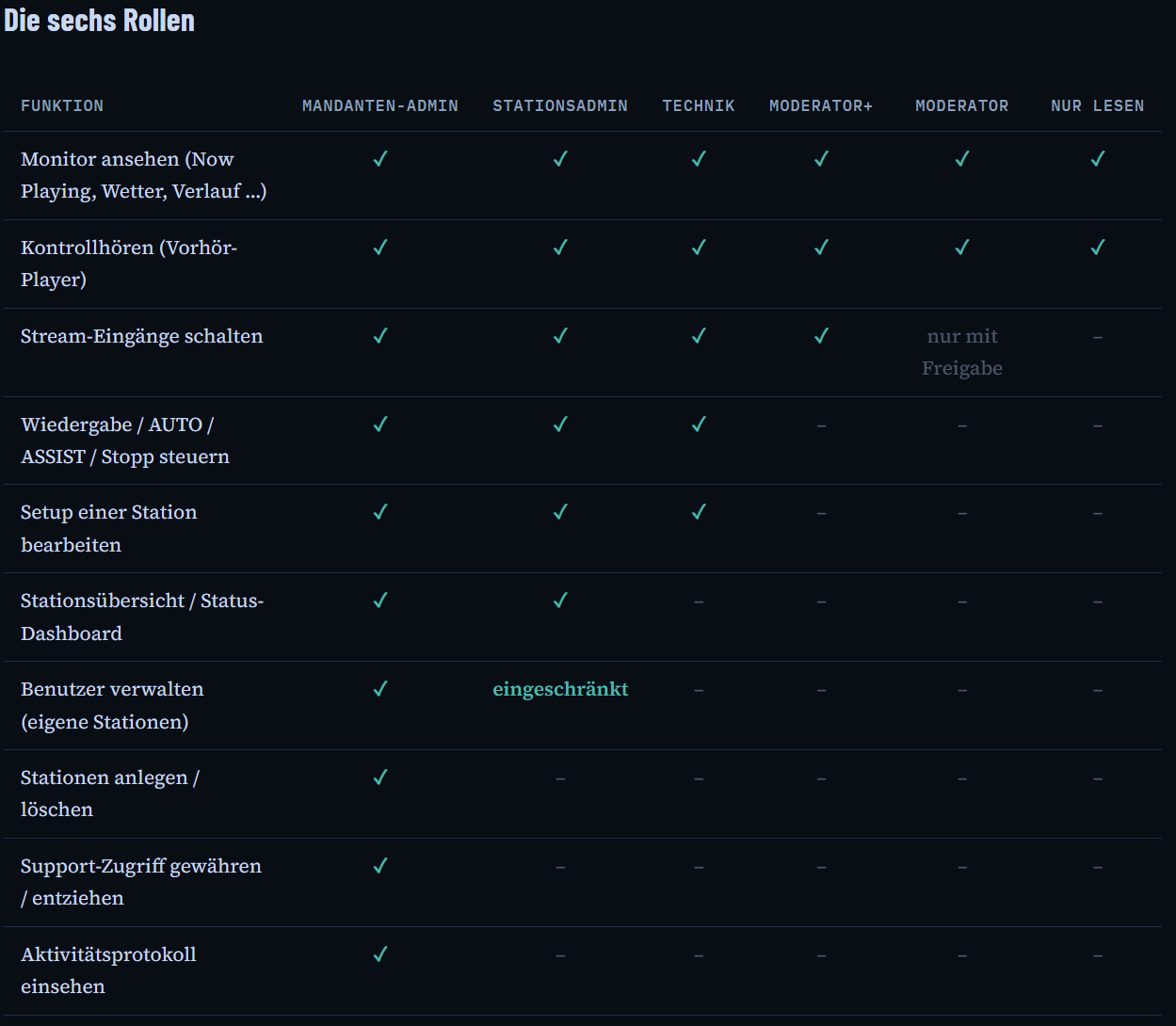
Nobody needs direct access to the server or the mAirList computer. Every permission is granted deliberately — never as a blanket rule.
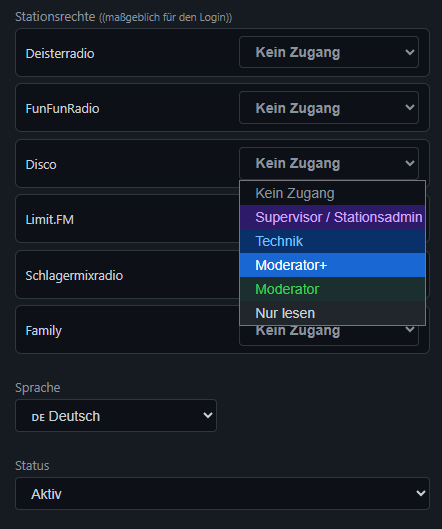
Individual role permissions per station
Every user gets exactly the rights for the stations they're allowed to use. Ideal for multiple different panels or station groups with several teams.
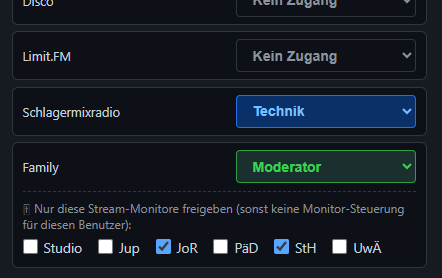
Stream monitor access and database search switchable per person
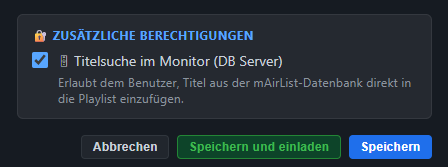
Who is allowed to switch which stream monitor can be set explicitly for each person. Just as granular as other additional permissions in the panel — for example, database search along with inserting into the running playlist.
Grant support access explicitly
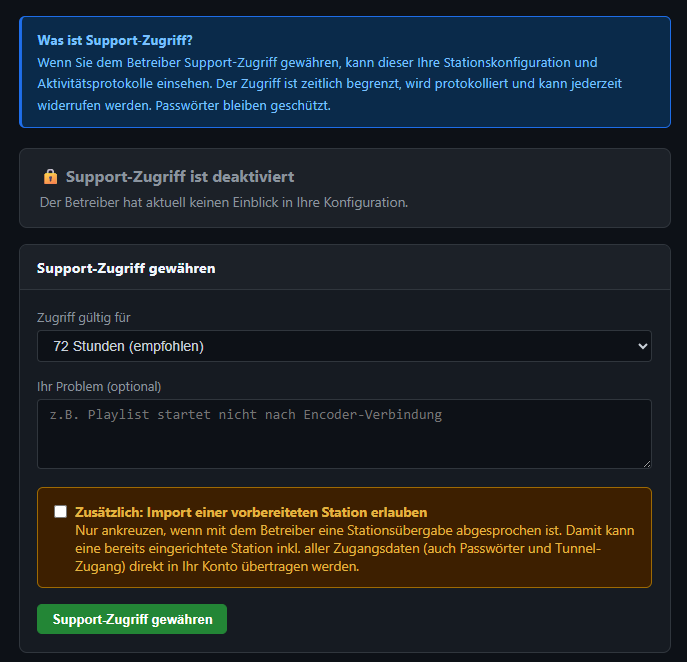
You can have us help you directly in your panel at any time. Granting support access for a set number of hours lets our OnAirPanel team take a look for you, without needing TeamViewer or any remote connection to your computer.
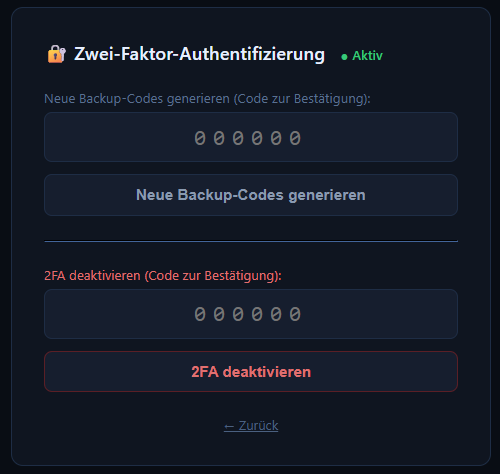
Security first — 2FA included, weak passwords blocked
Optionally protect your broadcast operations with two-factor authentication and backup codes. For the accounts that really need it.
Weak passwords like "1234Radio" or other easy-to-guess patterns are never allowed by the panel.
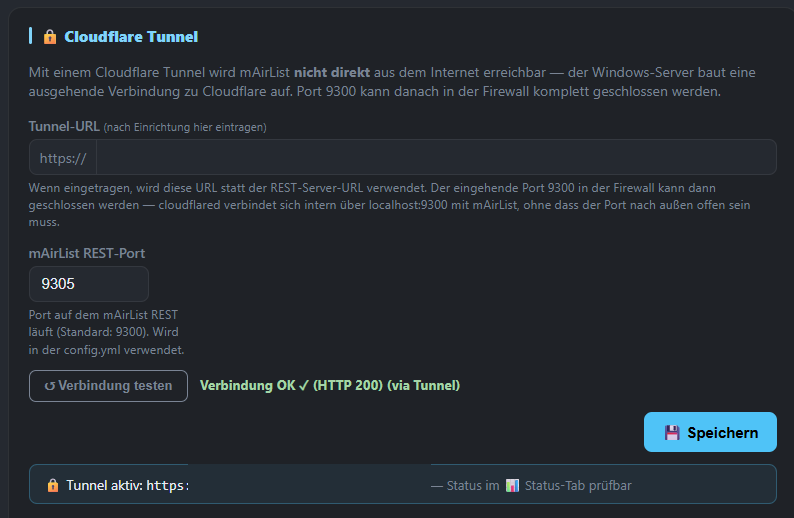
Cloudflare Tunnel
Secure access with no open firewall ports at all — just enter the Cloudflare Tunnel and you're done. From then on, OnAirPanel communicates exclusively through the secure tunnel. As with a VPN connection, the ports on your computer can stay closed.
If you're not familiar with setting this up yourself but still want to protect your broadcast computer from attacks, you can use our "SafeOnAir Tunnel". This Cloudflare-based tunnel is set up and operated for you by us for a small fee.
Complete activity log
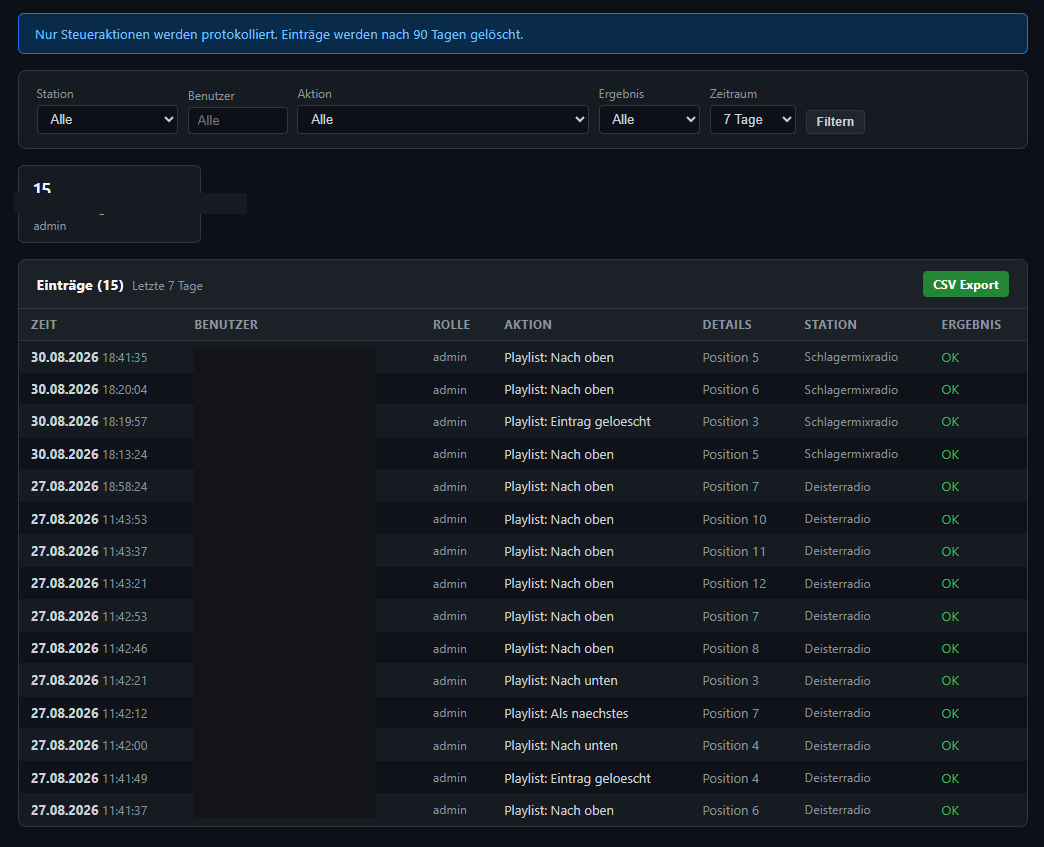
Every security-relevant action by a user is logged — traceable for you, not just for us. This log records every control command and login and can be exported by you.
So no user can say "that wasn't me" anymore.
The OnAirPanel team can only view these logs via support access, and only if you've granted it.
Built for day-to-day broadcasting
Details you only come to appreciate once you're live on air.
Finally go "on air" right on cue
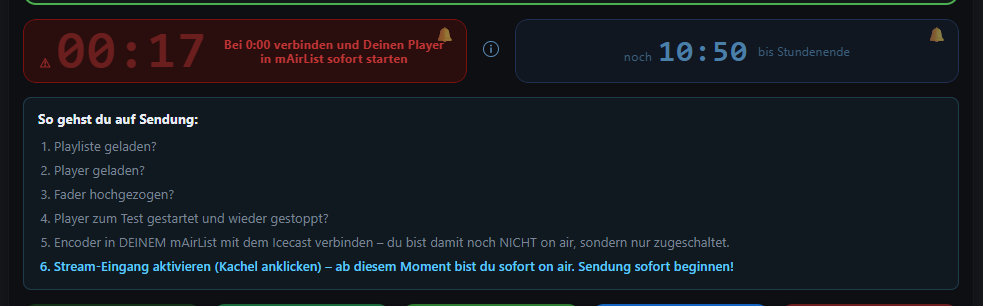
A countdown shows, to the second, the time remaining until the end of the item or the hour on the broadcast computer. That lets you activate the stream monitor on the broadcast computer and start your show at exactly the right moment.
An on-screen guide helps new presenters.
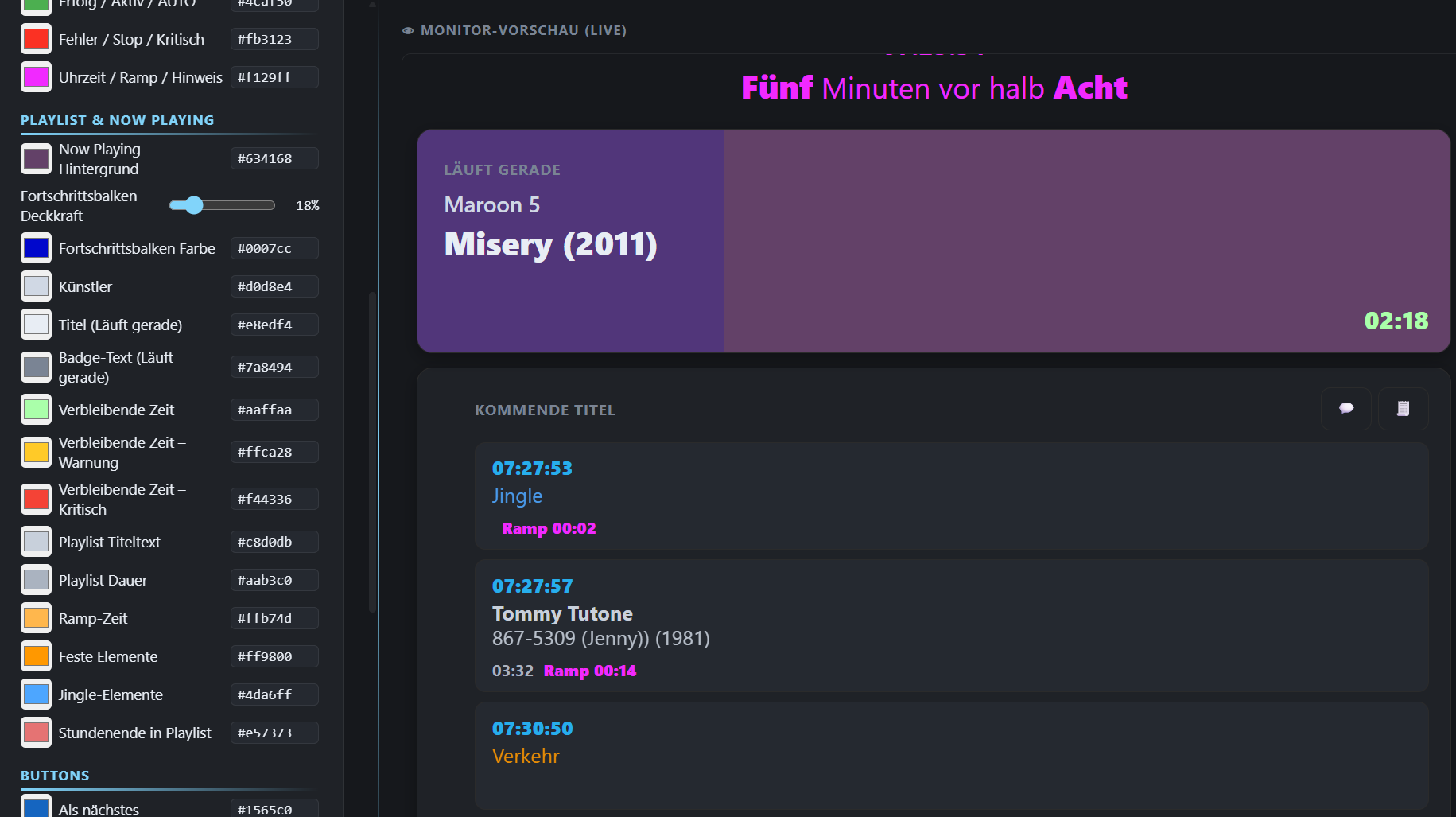
Customize the design live
Set colors and appearance on a WYSIWYG basis — every change visible instantly, no configuration file needed.
Current weather and temperatures at a glance
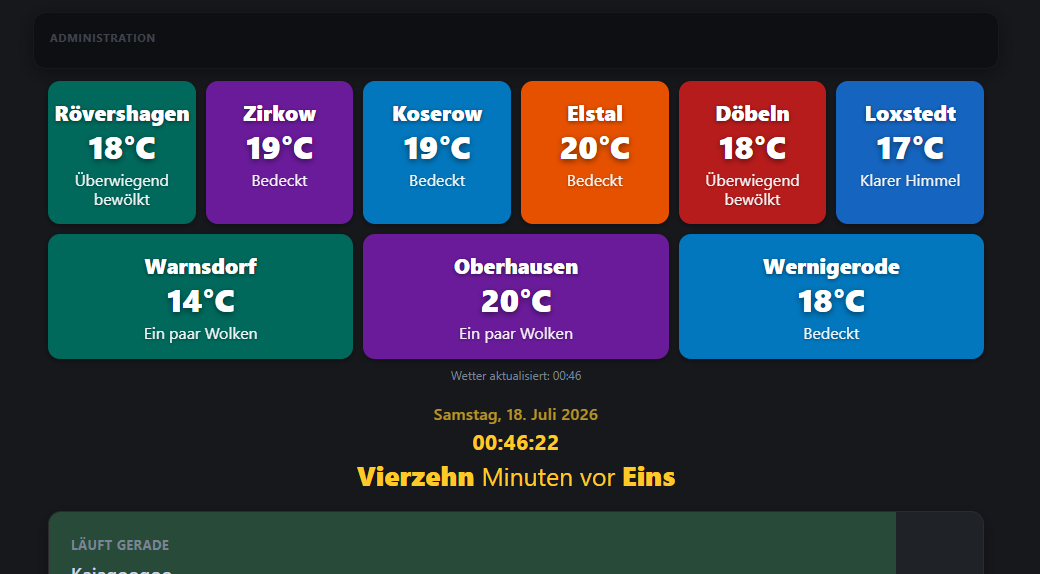
Up to 24 weather tiles for different cities or regions can be displayed via the free OpenWeatherMap service, in your own order and colors. With temperatures and, if you like, weather icons. The update interval can be set as you prefer.
The width of the weather area is flexible and can even extend beyond the edge of the panel itself. Of course, this area can also be shown at any position you choose within the panel.
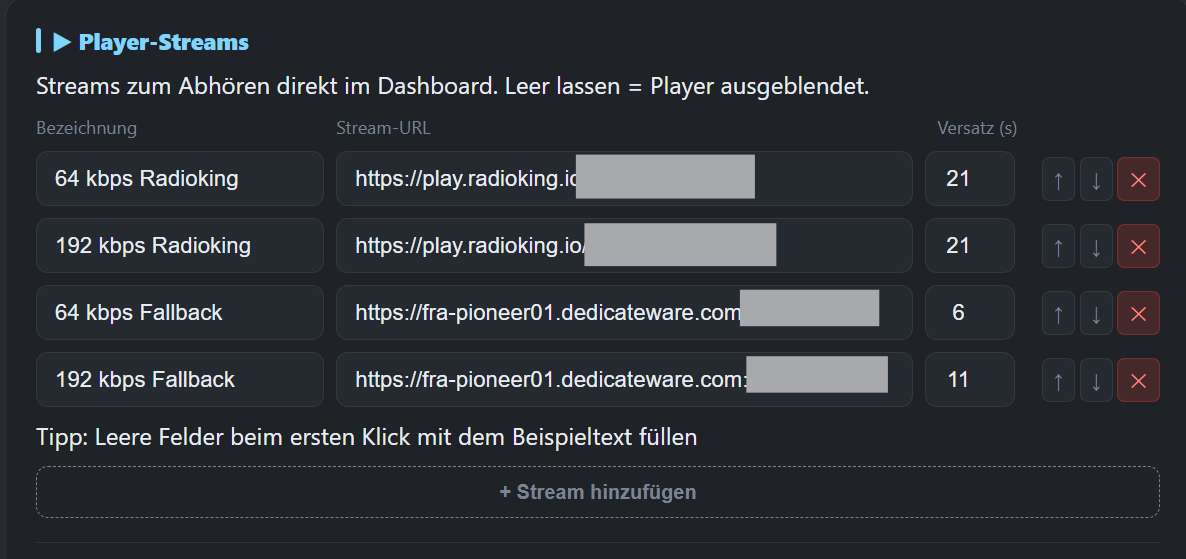
Stream control via the browser
Hear directly whether the stream is online or causing problems: with preconfigured streams, you can listen right in the panel to check that everything works. To account for the different delay of various providers, you can also set a variable offset for the display.
The streams can handle different metadata displays from Icecast, Shoutcast, Laut.fm and Radioking.

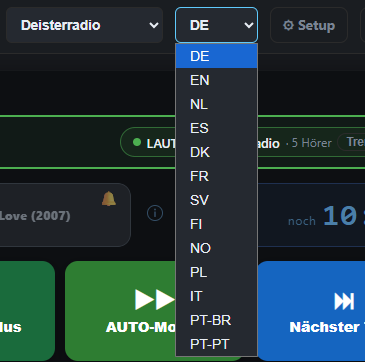
Switch language directly in the panel
Every user chooses their own display language — independently of everyone else, with no need to log in again.
Folder quick filter in the database search
When a search turns up a large number of tracks, the folders that can narrow it down can be shown explicitly.
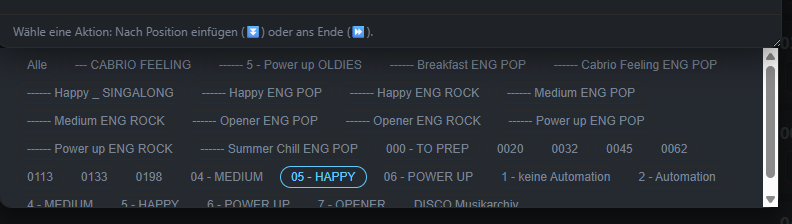
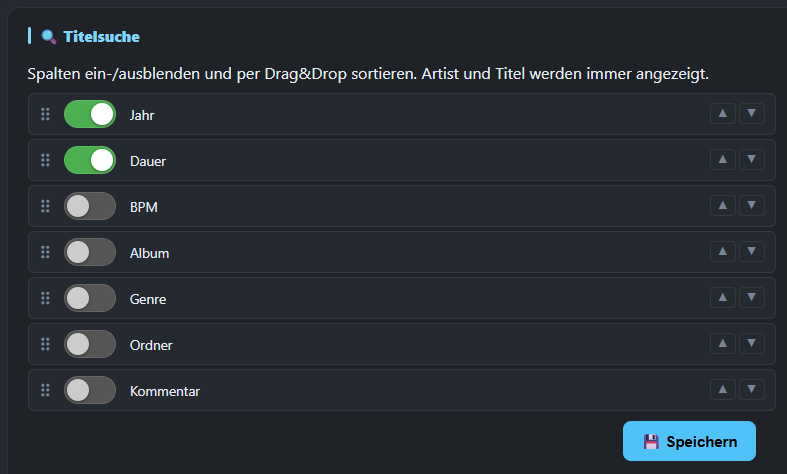
You can also specify in setup which columns are shown by default in the search. Users can individually hide these columns to refine their own search.
More than just an admin account
Built for everyone who works in the studio or is a guest there — not just for the one person in charge.
Dedicated monitor for guests & co-presenters
A special audience mode shows only the essentials — with no station-internal information. Ideal when someone needs to follow along at short notice without getting full access.
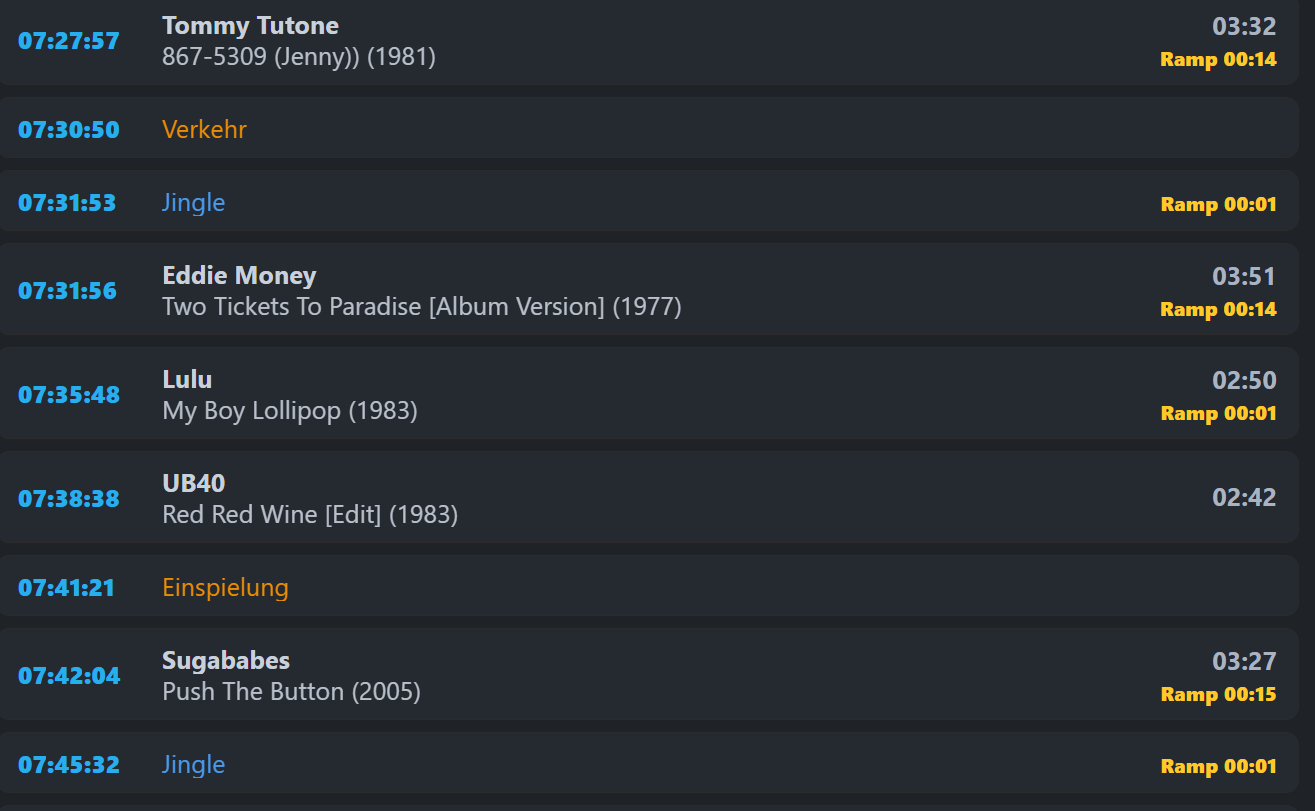
Independent station management by trusted users
Trusted people can manage a station and its users themselves — independently of the central admin.
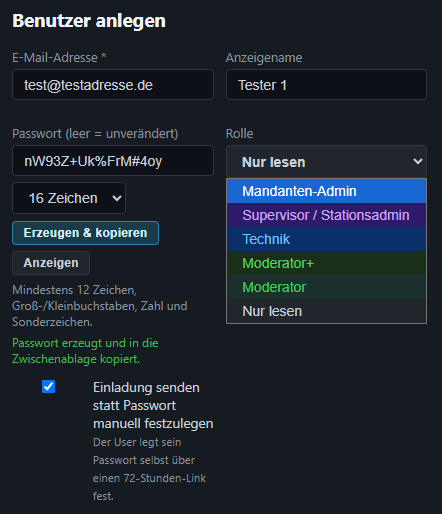
Explicit roles: editorial and technical kept separate
Editorial and technical views are deliberately kept separate — everyone sees only what's relevant to their role.
Built for mAirList and Icecast contributors
OnAirPanel already works together with your existing infrastructure out of the box.
REST API connection to mAirList
Direct control via the native mAirList REST API — for older versions, via an optional background script.

Icecast encoder status at a glance
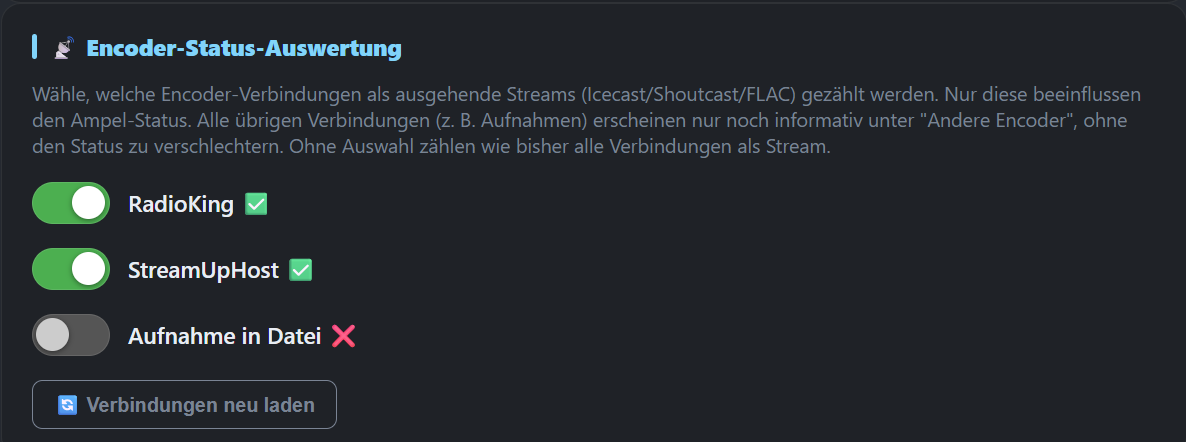
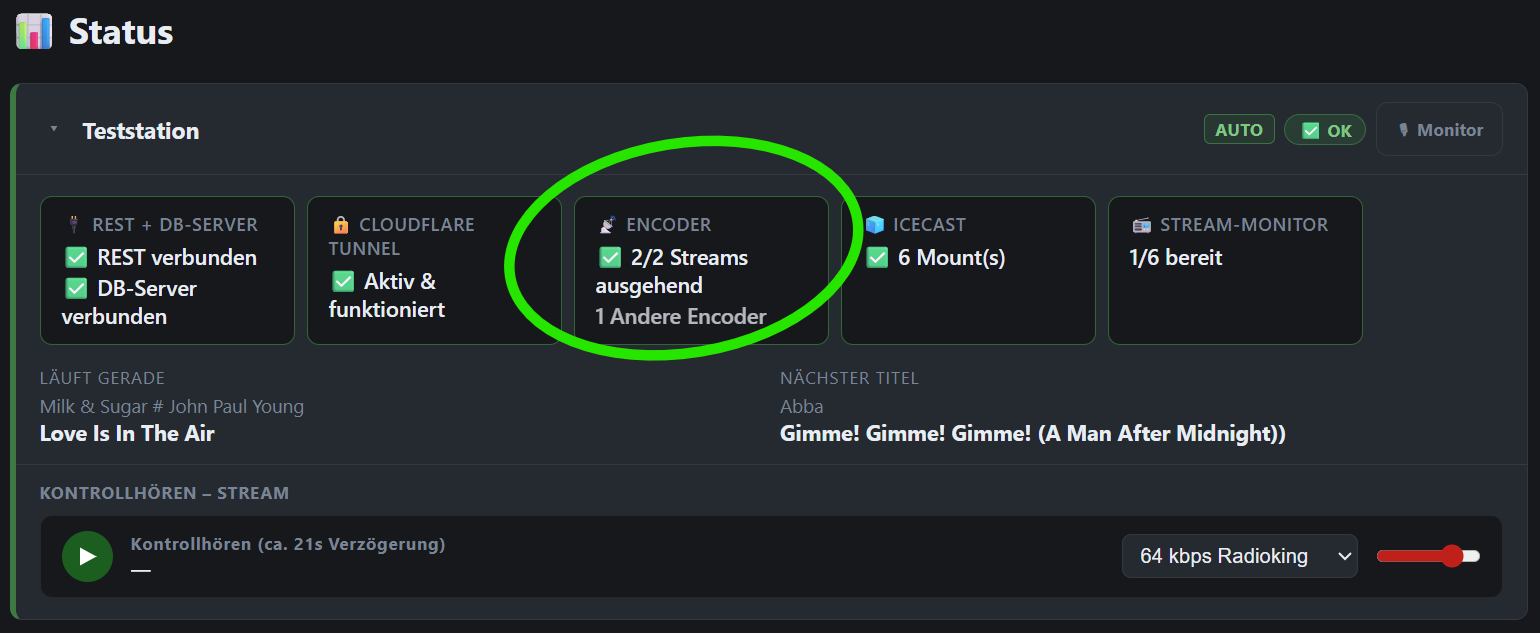
Status of all outgoing broadcast connections shown in traffic-light colors. If you like, specific encoder connections can be excluded so no error is shown just because, for example, no recording is currently active.
Import/export between stations
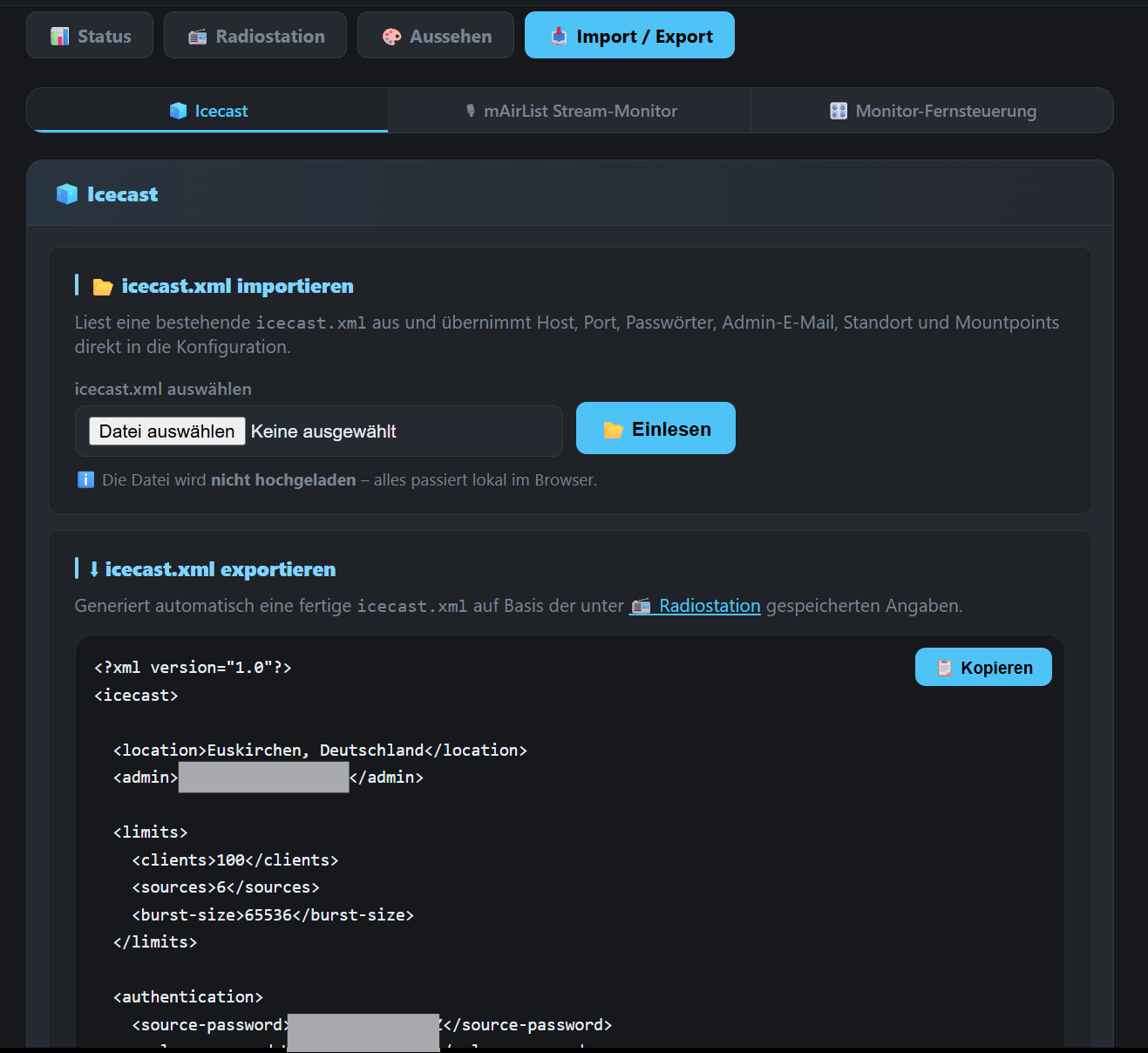
Icecast configuration and stream monitor settings can be exported from one station and imported into another.
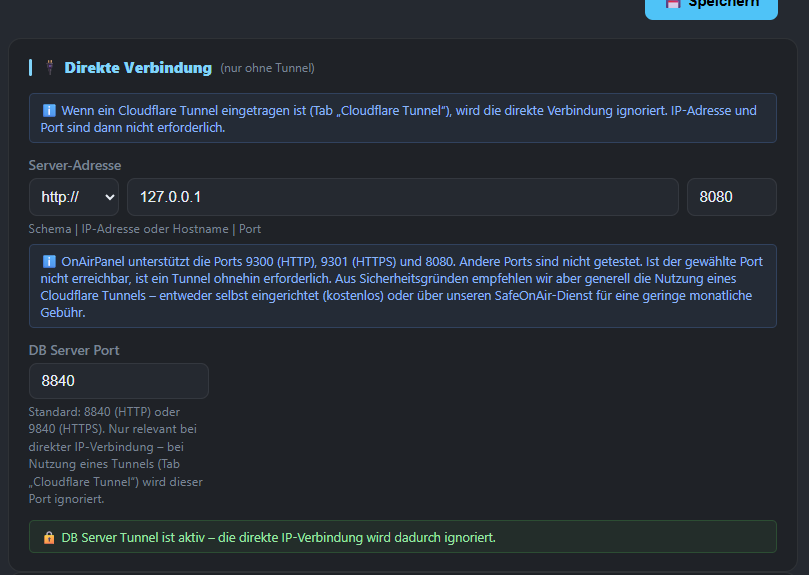
Direct connection or secure via tunnel – you decide!
If you're already on a secure network, or you're willing to accept the risk of an openly reachable mAirList computer, you're free to do that. Just enter the IP and port, with no Cloudflare Tunnel needed.
However, entering a Cloudflare/SafeOnAir Tunnel automatically disables these fields in the panel right away.
Curious to learn more?
All prices and plans are available at a glance.